
Remote Support
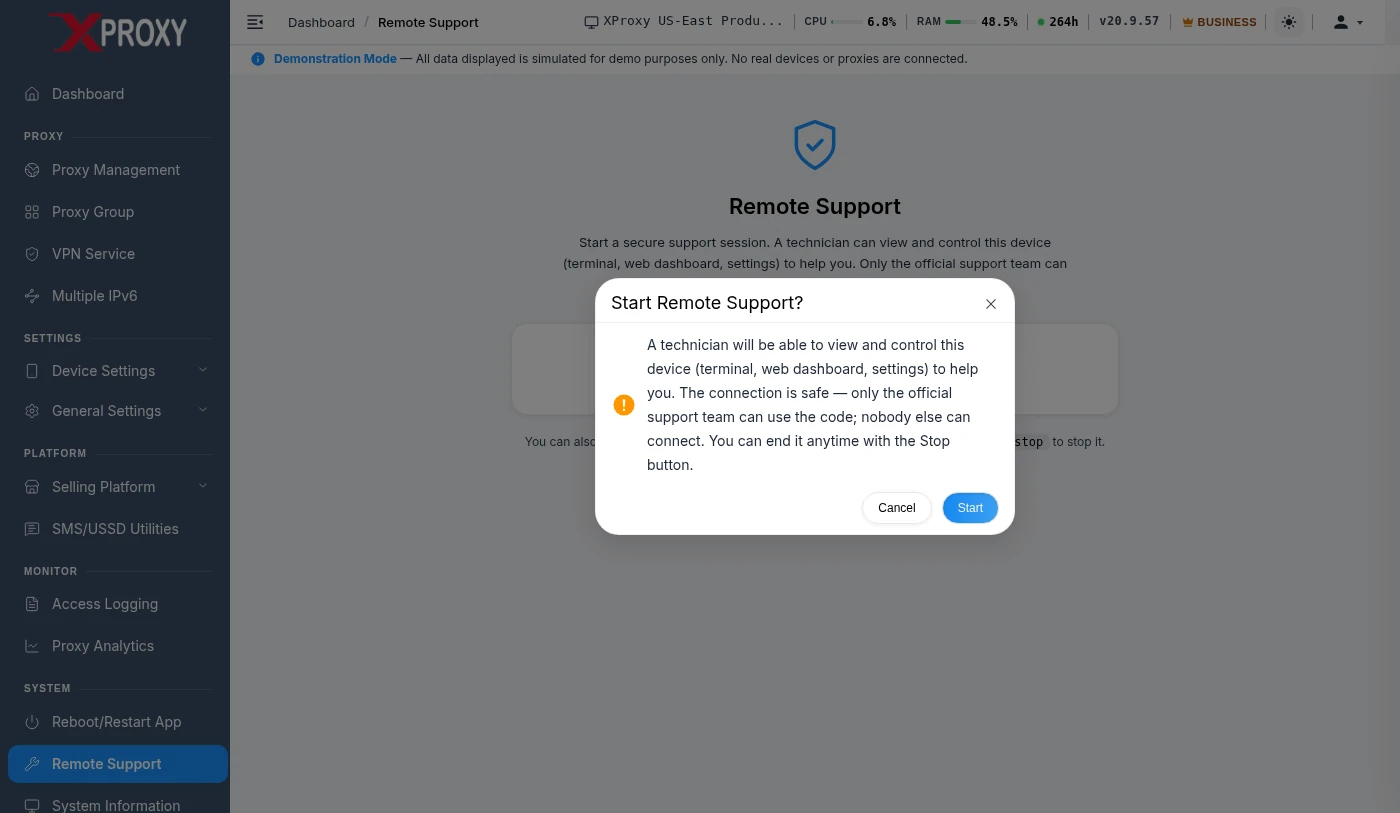
Remote Support lets an XProxy technician connect to your server using a short support code (PIN) — no port forwarding, no TeamViewer, no IP address needed. It is unattended: the technician works on your XProxy box in the background, so you don't need to stay at your computer and nothing moves on your screen. You start a session, share the code, and stop it when we are done.
Get me connected — pick your path
Answer the questions below and we show you only the steps that apply to you.
Can you open your XProxy dashboard in a browser?
Unattended support — what to expect
This is not screen sharing. If you used TeamViewer or UltraViewer before, you could watch the mouse move. Here the technician logs in to the XProxy box's command line from their own computer, so there is nothing to watch on yours.
| TeamViewer / UltraViewer | XProxy Remote Support | |
|---|---|---|
| What we access | Your computer's screen | Only the XProxy box (command line) |
| Your computer | Fully controlled | Not accessed — at most it relays one connection to the box |
| Do you need to stay? | Yes | No — it runs in the background |
| What you see | Mouse and windows moving | Nothing on screen — changes appear in your dashboard |
| How it ends | Close the app | Stop button on the dashboard, or xtool sp stop |
How do I know if a technician is connected?
- Session open or not: Dashboard → System → Remote Support shows the active session and its PIN. In a terminal:
xtool sp status. - Someone logged in right now: run
whoon the box. A login from127.0.0.1is the support tunnel. - Every past login:
grep Accepted /var/log/auth.loglists each login with date and time.
How do I remove access?
Click Stop Support Session on the dashboard, or run xtool sp stop. This closes the tunnel, removes our SSH keys from the box, and turns off resume-after-reboot. The session does not expire by itself, so always stop it when the work is done.
Started it from a Windows or Mac computer?
- Your computer is only a relay.
xtoolforwards one connection to the XProxy box you picked (for example192.168.1.50:22). Nothing on your computer — screen, files, browser — is shared. - Access exists only while the window is open. The
xtoolwindow is the session. PressCtrl + Cor close the window → the code stops working. While the computer sleeps or is shut down, nobody can connect. - Your password stays with you. If you type the box's username and password,
xtooluses them only on your computer to add a temporary key to the box. The password is never sent to XProxy, and the key is removed when you stop. - Nothing keeps running afterwards. No service, no auto-start. Delete
xtoolanytime.
How it works
- Start. You click Start Remote Support (or run
xtool sp). The box registers with xproxy.io and receives a PIN. - Tunnel out. The box opens one outgoing, encrypted connection to
s.xproxy.ioon port 8443 using chisel, an open-source tunnel. No incoming port is opened, so it works behind any router or CGNAT. - Technician connects.
xtool sp <PIN>is an SSH login to the relay on port = PIN. The relay passes it through the tunnel to the SSH server on your box. - Key check. Your box accepts only the XProxy support keys added for this session (tagged
xproxy-support-<PIN>inauthorized_keys). The PIN alone does not log anyone in. - Stop. The tunnel closes, the keys are removed, and the PIN stops working.
| Technology | Role |
|---|---|
| chisel (open source) | Outgoing tunnel from your box to the relay — WebSocket over HTTPS, with SSH encryption inside. Downloaded from the official release and checksum-verified. |
| OpenSSH | The box's normal SSH server. Key-based login; every login is written to the box's own system log. |
XProxy relay s.xproxy.io | Connects the technician to the right tunnel by PIN (ports 21000–21999). Holds no access to your box without a session. |
| xproxy.io API | Issues and revokes PINs, and records which technician connected and when. |
Is it safe?
- You start it. Nobody can connect until you start a session and hand over the code.
- The PIN is not a password. Logging in also needs an XProxy support SSH key, which is added only for your session.
- You end it. Stop the session → tunnel closed, keys removed, code dead.
- No incoming connections. Your server makes one outgoing connection to XProxy's relay — works behind any router, CGNAT, or firewall that allows normal web browsing.
- Your computer is not accessed. We work only on the XProxy box.
xtoolis one small program you can delete anytime.
Troubleshooting
| Problem | Fix |
|---|---|
| No Remote Support menu in the dashboard | Your XProxy is older than v21.2.15. Open System Information → Force update, wait for it to finish, reload the dashboard. If the menu is still missing or the update fails, contact support on Telegram. |
| "Code not found or expired" | The session was stopped or expired. Run xtool sp again for a fresh code. |
| "Failed to establish tunnel" | Your network blocks outbound port 8443. Try another network or contact us. |
| Windows shows "Windows protected your PC" | Click More info → Run anyway. The tool is unsigned but safe — or install via the PowerShell line above which avoids the warning. |
| "Access is denied" / permission error on Windows | The installer writes only to %LOCALAPPDATA% — no admin needed. If it still fails, antivirus is blocking the download; allow it or contact us. |
| "Permission denied" installing on Mac/Linux | The installer tries /usr/local/bin first, then falls back to ~/.local/bin — no sudo needed for the fallback. Run the plain command again; use sudo only if your admin wants a system-wide install. |
| Corporate PC blocks installs entirely | No install needed — the technician can start a session from the XProxy dashboard (System → Remote Support) directly on the XProxy box. |
No servers found by xtool sp | Pass the server's IP directly: xtool sp 192.168.x.x. |
For technicians
xtool sp <pin>                  # interactive shell
xtool sp <pin> -e "cmd"        # run one command
xtool sp <pin> -D 1080         # SOCKS5 proxy via the box
ssh -p <pin> [email protected]  # zero-install fallback
Full command reference: xtool sp -h and dashboard access guide.
Need help? Talk to a technician
Message our support on Telegram — we reply in minutes during business hours.
Contact @xproxyio